How to show all videos on a separate page?
Yes. Create a Grid widget, add the videos you want visitors to browse, and place it on its own Shopify page. The grid arranges videos in rows, much like a product listing.
Step 1: Create a Grid widget
In Vizup, create a Grid widget and add every video you want to show in the gallery. Give the widget a recognizable name, such as Video Gallery; you will use that name when adding it to your theme. See How to create a Grid widget for the full setup.
Step 2: Create a Shopify page
In your Shopify admin, go to Online Store > Pages and click Add page. Enter a title such as Video Gallery, then save the page. Shopify’s page creation guide has more details.
Step 3: Create a dedicated page template
To keep the video grid on this page only, create a separate template for it. In Shopify admin, go to Online Store > Themes > Edit theme. In the theme editor’s page selector, choose Pages > Create template. Name the template (for example, video-gallery) and create it based on your default page template.
Step 4: Assign the template to your page
Go to Online Store > Pages, open your Video Gallery page, and choose the new template in the Theme template menu. Save the page. Shopify explains this in its guide to applying a template to a page.
Step 5: Add the Grid app block
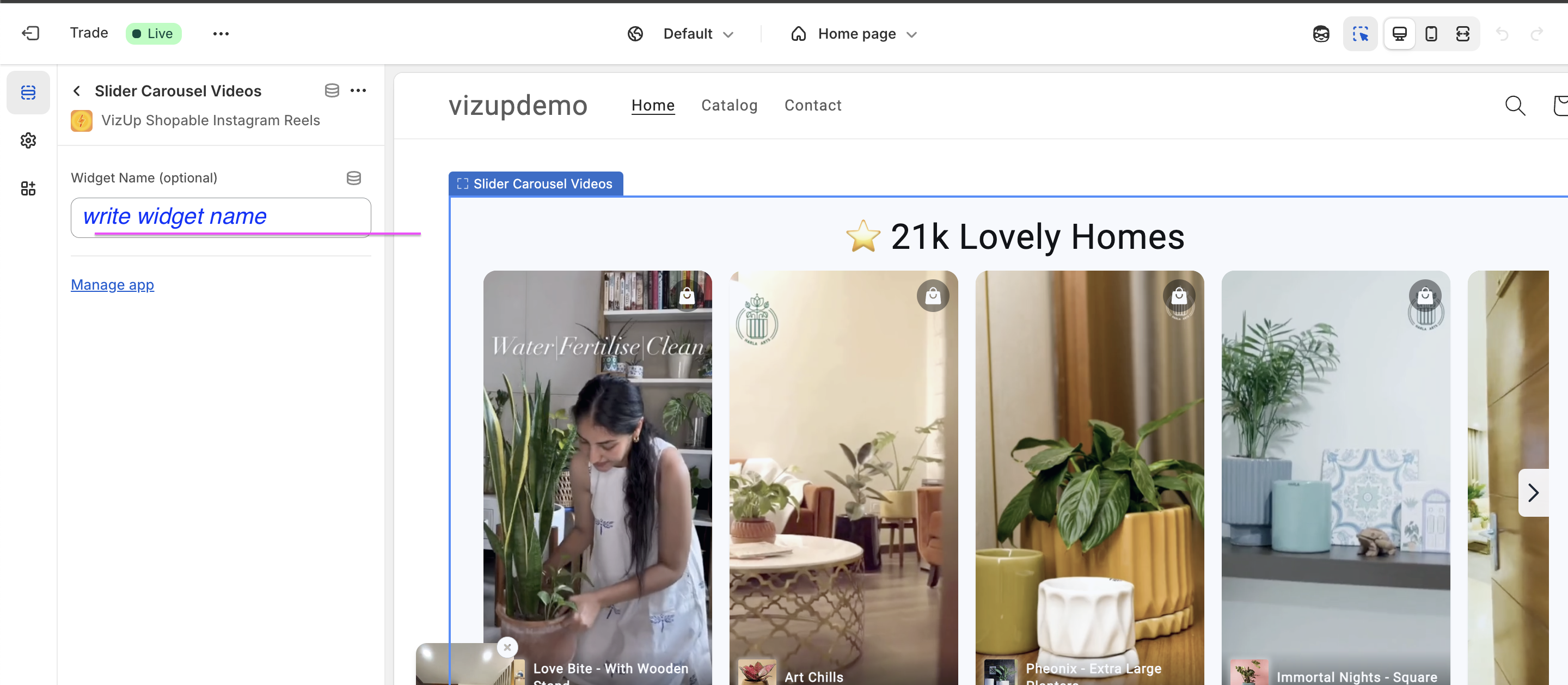
Open the new page template in the theme editor. Click Add section, open the Apps tab, and add Vizup’s Grid Layout app block.
If the block shows a Widget Name (optional) field, enter the exact name of the Grid widget you created in Step 1 so the page loads that widget.
Step 6: Save and preview
Click Save in the theme editor, then preview the Video Gallery page to confirm the grid and videos appear as expected.
Optional: Add the page to your store menu
To help visitors find the gallery, go to Content > Menus in Shopify admin, open your store menu, and add the Video Gallery page as a menu item. See Shopify’s guide to adding menu items.